WELCOME TO THE STUDY!
Thank you for joining us! You’re about to experience a healthy way to stay active, have fun, and eat nutritiously. You will be supported by two apps, Nutrida and GameBus, that can help in having a real impact on your lifestyle and making better choices every day. By using these apps, you’ll be helping us find out if they can really help you reach your health goals!
Table of Contents
- What’s in It for You?
- How the Study Works
- Health Apps
- Installation and Registration
- Smartwatch
- Wear Instructions
- Tutorials
- Support
- Frequently Asked Questions (FAQ)
WHAT’S IN IT FOR YOU?
Healthy Eating Made Easy: Nutrida gives you personalized meal recommendations that fit your diet and your culture.
Rewards for Being Active: GameBus lets you complete fun challenges and rewards you for living a healthy lifestyle.
Your Feedback Matters: Your experiences and thoughts will help us improve these apps for everyone. Plus, when you complete both online surveys we’ll reward you with a €50 voucher as appreciation for your investment!
HOW THE STUDY WORKS
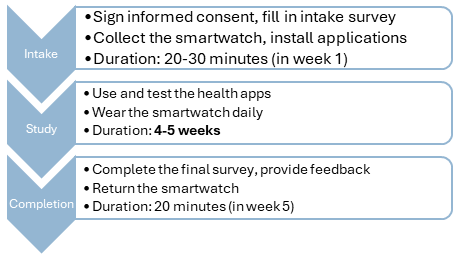
Daily Commitment: You choose how often and how long to use the apps. On average, it takes about 10 minutes per day. Participating in the suggested activities is completely up to you, of course.
Apps and Smartwatch Usage: You’ll try Nutrida for meal planning and GameBus for engaging in healthy activities. The provided smartwatch will track your physical activity and send that data to GameBus. Furthermore, you’ll receive few daily prompts on your smartwatch, asking you to quickly report your thoughts and feelings. Please wear the smartwatch daily to complete your participation!
You’ll be doing something awesome for your health—and also helping others do the same. Besides using the apps you will be asked to complete two surveys. Your answers will help us track any changes in your lifestyles over the course of the study. But more importantly, in the final survey we will ask about your thoughts on the apps! Let us know what you think so we can make them even better for future use.
HEALTH APPS
GAMEBUS
GameBus is a web-based platform that integrates game-like elements to encourage users to engage in healthy behaviours. As web-based platform is can be used on laptops, tablets or mobile phones. Some of the features of GameBus include:
Register Healthy Activities: Engage in activities, that are shown in three different challenges, to earn points. Such as cooking meals in the Food & Cook Challenge, taking short walks in the Walk & Exercise Challenge, or trying yoga poses in the Sleep & Mindfulness Challenge. You will find in the task description what you need to do to complete the activities, such as upload a photo, write something or nothing (some tasks are automatically rewarded with Nutrida or the Smartwatch).
Rewards System: The Scoreboard page shows the points you collected so far per challenge, and ranks you between the other participants. If you earn enough points you will move to the next levels and win virtual Badges. The more tasks you complete, the better you will feel!
Tips and Tricks: The Tips page will display a short, helpful piece of advice or information that is shared daily to inspire, educate, or improve someone’s day-to-day life. The Nutrida page will directly link you to the Nutrida app. The Maps page will show you walking trails around your current location. My account will show you the activities you did so far or you can adjust your profile information in the settings.
NUTRIDA
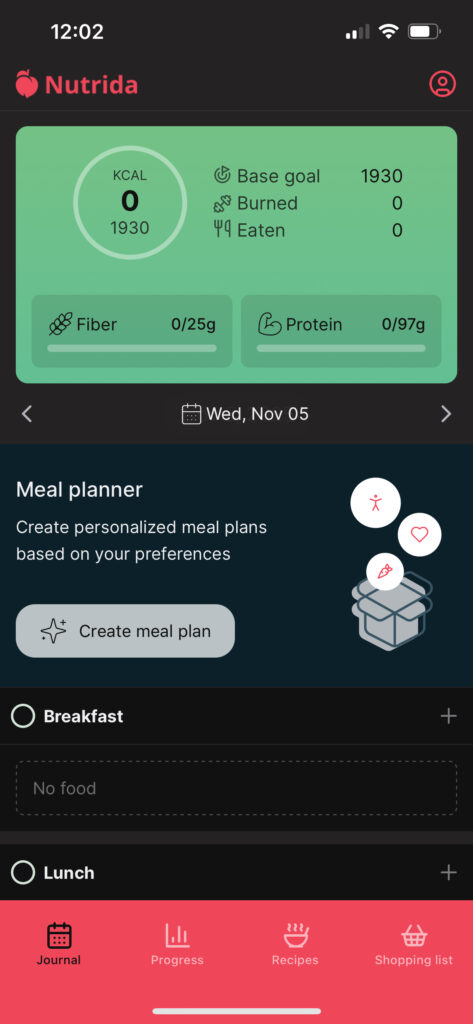
Nutrida is a meal planning app for your mobile phone that offers personalized meal recommendations based on the preferences, cultural background, and metabolic data of your family. It aims to improve eating habits by offering healthy and easy-to-prepare recipes.
Meal Plan: Track your meals, log food, and add products in one place. The Meal Planner generates personalized plans based on your preferences, needs and habits. Via the + sign you can also log your (additional) food intake per meal. In the Profile bar, you can adjust your preferences, eating habits or change for example the language in Settings.
Progress Tracker: If you checkmark the meals you have eaten, the system can calculate your intake calories, fibers, and proteins. the Progress page visualizes day and week-overview data on energy, nutrients, and weight (which you can log), helping you stay on track with your goals.
Recipes: Explore a variety of healthy Recipes and get detailed information per recipe, including nutritional info (grams, kcal, carbs, protein, fat, fibers), ingredients, and preparation instructions. You can also favorite recipes for easy access later.
Shopping List: Automatically generate a Shopping List based on your meal plan and selected recipes, making grocery shopping easier and ensuring you have everything you need to stick to your plan.
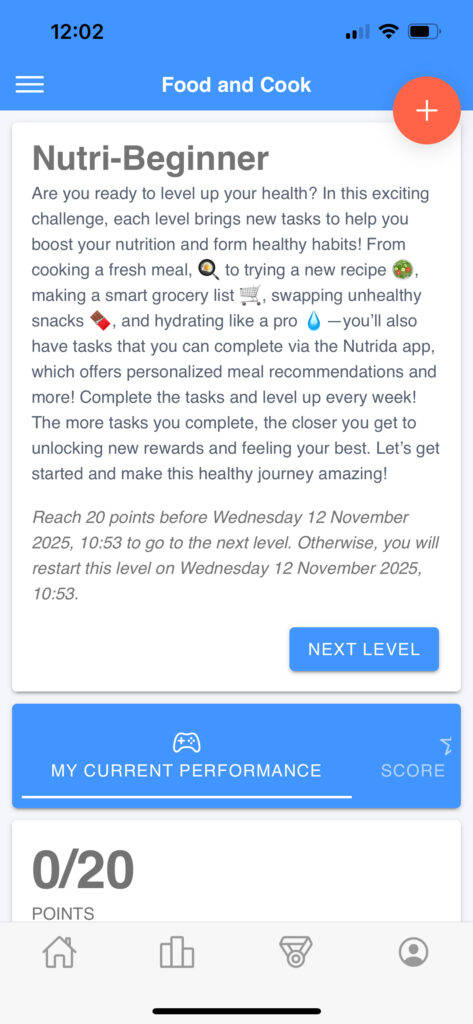 homepage gamebus homepage gamebus | 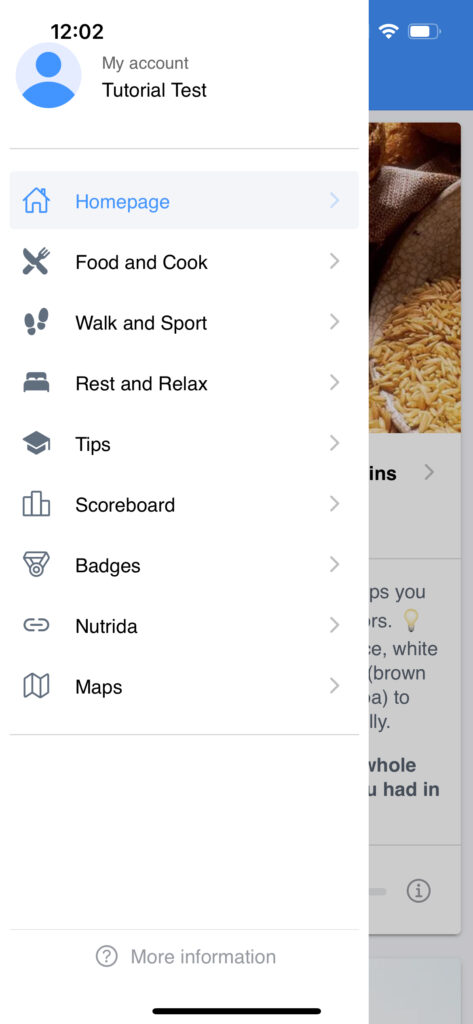 content gamebus content gamebus |
 homepage nutrida homepage nutrida | 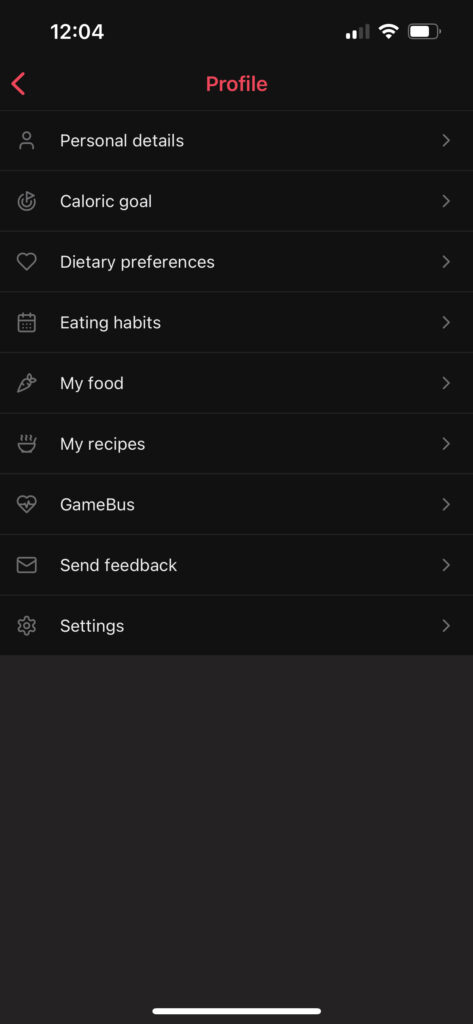 content nutrida content nutrida |
INSTALLATION AND REGISTRATION
You will receive account credentials that are made by us. Your login credentials are the same for both apps. You can found your credentials in your e-mail or on top of the Smartwatch box. To install the apps and log-in, follow the procedures below:
GameBus
Visit GAMEBUS via https://healthyw8.gamebus.eu/ on your preferred internet browser via any digital device you like to use
Complete the registration by answering the questions and finetuning your account
Enter the campaign name: tuepilot
– and click on VERIFY CAMPAIGN NAME
Read the information and click YES, I AM IN! to begin the login process
Log in with the provided email address and password to LOG IN
| If you would like to have GameBus as an “app” on your Mobile Phone, follow the following procedure: | |
| For Android: Open Google on your phone and write: healthyw8.gamebus.euClick on the three dots (in the upper right-hand corner of the screen)Select “Add to the home screen” and select “Install” | For iPhones: Open Safari on your phone and write: https://healthyw8.gamebus.eu/Click on the “Share” button (on the bottom of the page)Select “Add to the home screen” and select “Install” |
Nutrida
Download NUTRIDA from the Google Play Store or Apple App Store on your mobile phone or go to the following link: Nutrida
Log in with the provided email address and password
Before you start using the app, a few pages will ask you to fine-tune your profile. This includes entering details like personal information, setting your caloric goal, specifying dietary preferences, and defining your eating habits. This helps the app tailor its features to your specific needs
SMARTWATCH
EXPERIENCER
The Experiencer app on the Samsung Smartwatch will track your physical activity and location and send recommendations tailored to your current context to help you reach your health goals. The smartwatch functionalities are restricted, please do not tamper with or modify the watch’s settings or software, as these restrictions are in place to protect your privacy.
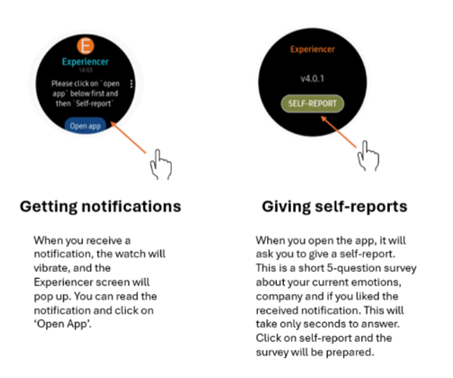
You’ll receive health recommendations during the day, those are followed up by a short survey asking how you are feeling. It’s easy and takes less than 1 minute! Feel free to self-report any time if you like it!
- When the smartwatch starts vibrating, the Experiencer screen will pop-up and show a message. Read the message and then simply tap on the Open App button to open the Experiencer app
- Click on Self-report to answer a few questions on how you are feeling at that moment and if you will follow-up on the recommendation
- You can answer the questions by clicking on the preferred answer or sliding your finger along the edge of the smartwatch
- When you complete the survey you will see a checkmark, showing you that you are done and your answers are saved!
Please connect your smartwatch to Wi-Fi to ensure your data is synced regularly. To connect, select ‘Connections’ in the Settings menu. Under connections, select ‘Wi-Fi’. Select the Wi-Fi network you want to connect to (preferably your home router) and enter the network password (if needed). Once successfully connected, a Wi-Fi icon will appear at the top of the screen.
WEAR INSTRUCTIONS
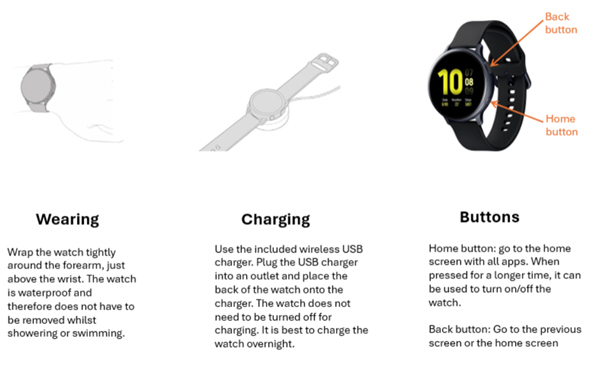
Daily Wear: Wrap the watch tightly around the forearm, just above the wrist. Wear the smartwatch throughout the day (from when you wake up until you go back to bed) for accurate tracking of steps, location, and self-reports.
Buttons: To turn the device on or off, press and hold for more than 3 seconds the lower button (Home Button) on the side of the watch. When you press only once, you will see the home screen with all the available apps. To turn off the screen, cover it with your palm. When you click on the upper button (Back Button) you will go to the previous screen.
Charging: The smartwatch typically lasts one full day on a single charge. Charge the watch overnight using the magnetic charger that is provided inside the given box. To charge, plug the USB charger into an outlet and place the back of the watch on top of the charger. The watch does not need to be turned off for charging.
Comfort: If you experience discomfort while wearing the watch, feel free to adjust or remove it briefly, but keep it on as much as possible for accurate data.
Waterproof: The smartwatch is waterproof and therefore does not have to be removed whilst showering or swimming. For more information, please check [Is the Galaxy Watch Active2 water and dust resistant?]
Tutorials
GameBus
Nutrida
Support
NEED HELP OR WANT TO SHARE FEEDBACK?
If you run into any problems with the apps or have questions about your participation, don’t hesitate to reach out to us. We’re here to make sure you have a smooth experience.
We’re just a message away:
You can send an e-mail to Suzan Evers via s.evers@tue.nl
Furthermore, In the My Account section of GameBus you are directed to the My Activities page, you will see the activities that you have completed. You can comment and react to those activities at this page, and give feedback. In the Profile bar of Nutrida you can find Send Feedback. Here you can write a message with your thoughts and feedback. These features allow you to provide input on the app’s features during your experience and help refine future recommendations. The developers of the app will see your feedback directly.
FREQUENTLY ASKED QUESTIONS (FAQ)
- What should I do if I can’t log into the apps? Double-check your login credentials (email and password). If you still can’t log in or forgot your password, we can try resetting your password, please contact the support e-mail above for assistance.
- How does Nutrida personalize my meal plan? Nutrida generates a personalized meal plan based on the details you provide during setup, such as height, weight, age, activity level, dietary preferences and meal structure. You can always adjust your preferences in the menu bar.
- Do I need to upload photos or descriptions for GameBus activities? Some activities may require you to upload a photo or enter a brief description, others can be automatically completed using Nutrida or a Smartwatch. All activities are voluntary, and you can decide yourself which information or photo you upload, we will never encourage you to provide sensitive information of selfies.
- Can I connect the smartwatch to my smartphone? No, the smartwatch’s settings are restricted to ensure privacy regarding the data flow and avoid distractions. Please do not tamper with the settings or software. The Experiencer app will transfer the physical activity data via Wi-Fi directly to GameBus.
- What should I do if my smartwatch freezes? If the smartwatch freezes or stops working, restart it by holding down the lower button for 10 seconds. If problems persist, please contact the support e-mail above for assistance. If the Experiencer app closed itself during self-reporting, don’t worry, just open the app again and continue where you left off.
- What do I do if I can’t connect my smartwatch to Wi-Fi? If your- Wi-Fi network does not appear on the smartwatch, ensure your router is broadcasting on the 2.4 GHz band, as the smartwatch does not support 5 GHz networks. Moreover, you cannot connect to TU/e Wi-FI due to its security policies.